Installing Overlays in OBS & TikTok Live Studio
An overlay is a web page you install in your streaming software. That's where IndoFinity's alerts, images, sounds, and animations actually become visible to viewers.
The steps are the same for almost every IndoFinity feature. Only the menu you copy the link from changes. This page explains it once, in full.
What Screen Overlays are
For alerts from the Interaction Center, IndoFinity provides 10 separate Screens. Each has its own link, and each Interaction is directed to one of them.
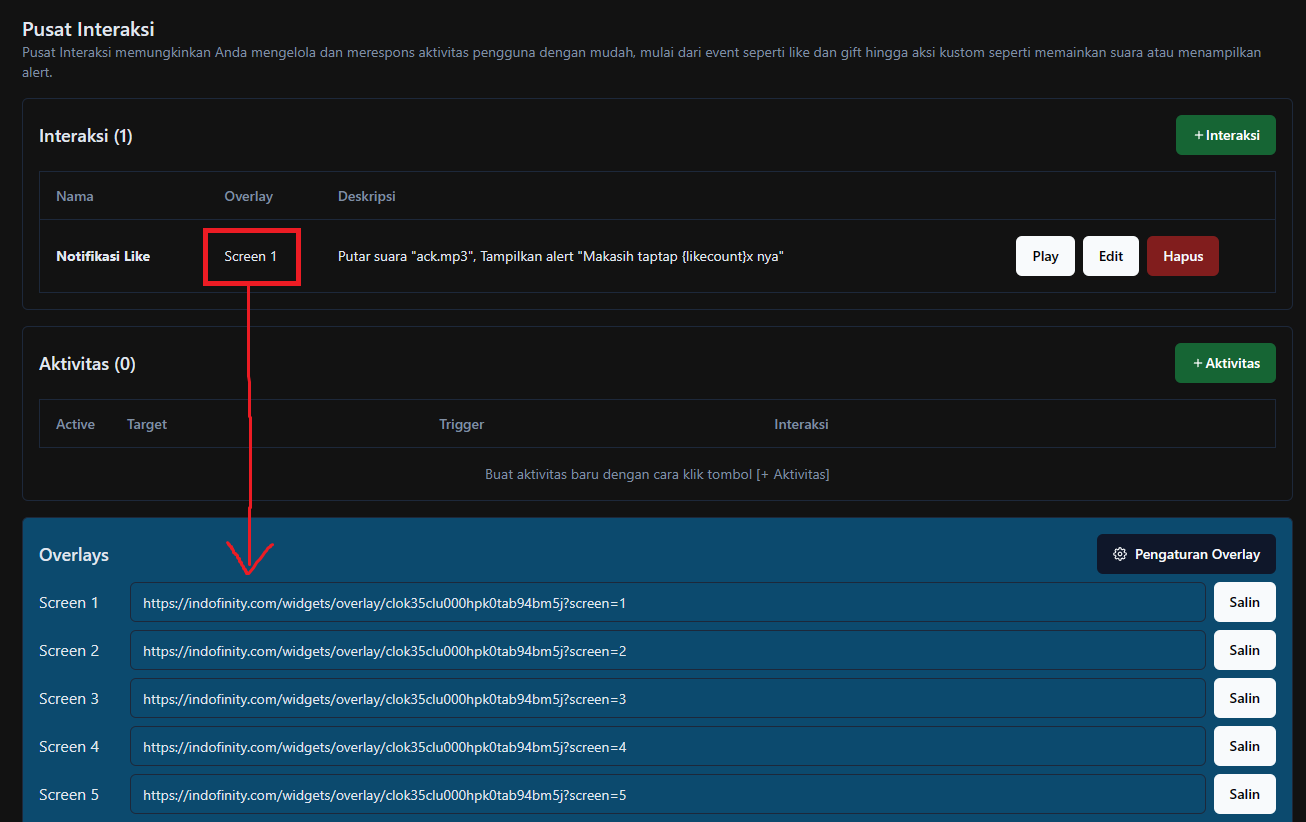
Only install the Screens you actually use. There's no need to install all ten, since an idle Browser Source still consumes your PC's resources.
The reasoning behind the split is in Screen Overlays.
Installing in OBS
Make sure OBS is installed on your machine.
- Open the Interaction Center menu in the dashboard and scroll to the very bottom.
- Copy the link for the Screen you want.
- In OBS, click [+] in the Sources panel, then choose Browser.
- Name the source, for example
IndoFinity Screen 1, and click OK. - Paste the link into the URL field.
- Set Width to
1920and Height to1080. - Click OK to save.
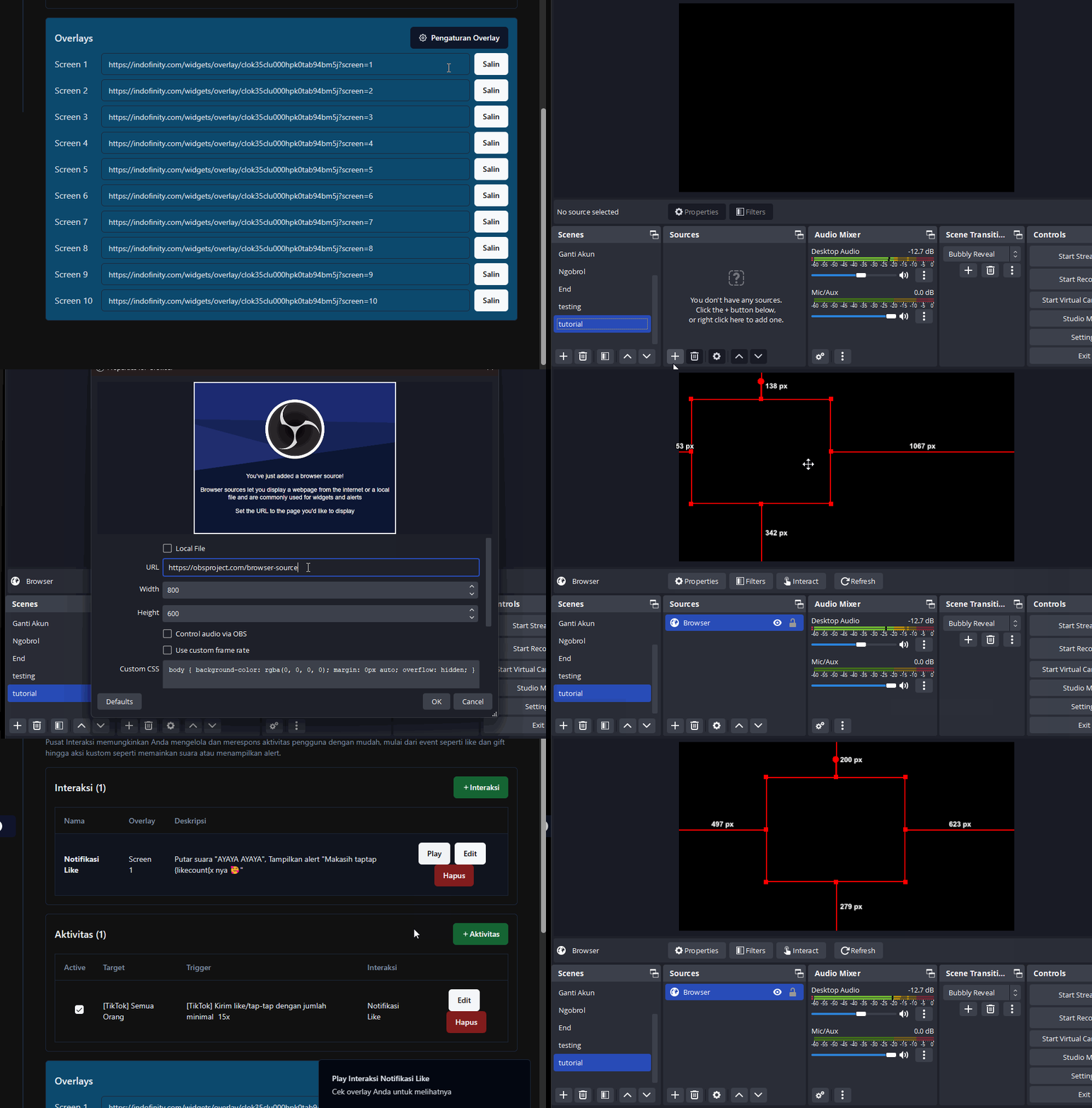
To test it, press the Play Interaction button on any Interaction you've created. The alert should appear immediately in the OBS preview.
Installing in TikTok Live Studio
Make sure TikTok Live Studio is installed on your machine.
- Open the Interaction Center menu in the dashboard and scroll to the very bottom.
- Copy the link for the Screen you want.
- Click Tambahkan Sumber (Add Source), then choose Tautan (Link).
- Paste the link.
- Click OK to save.
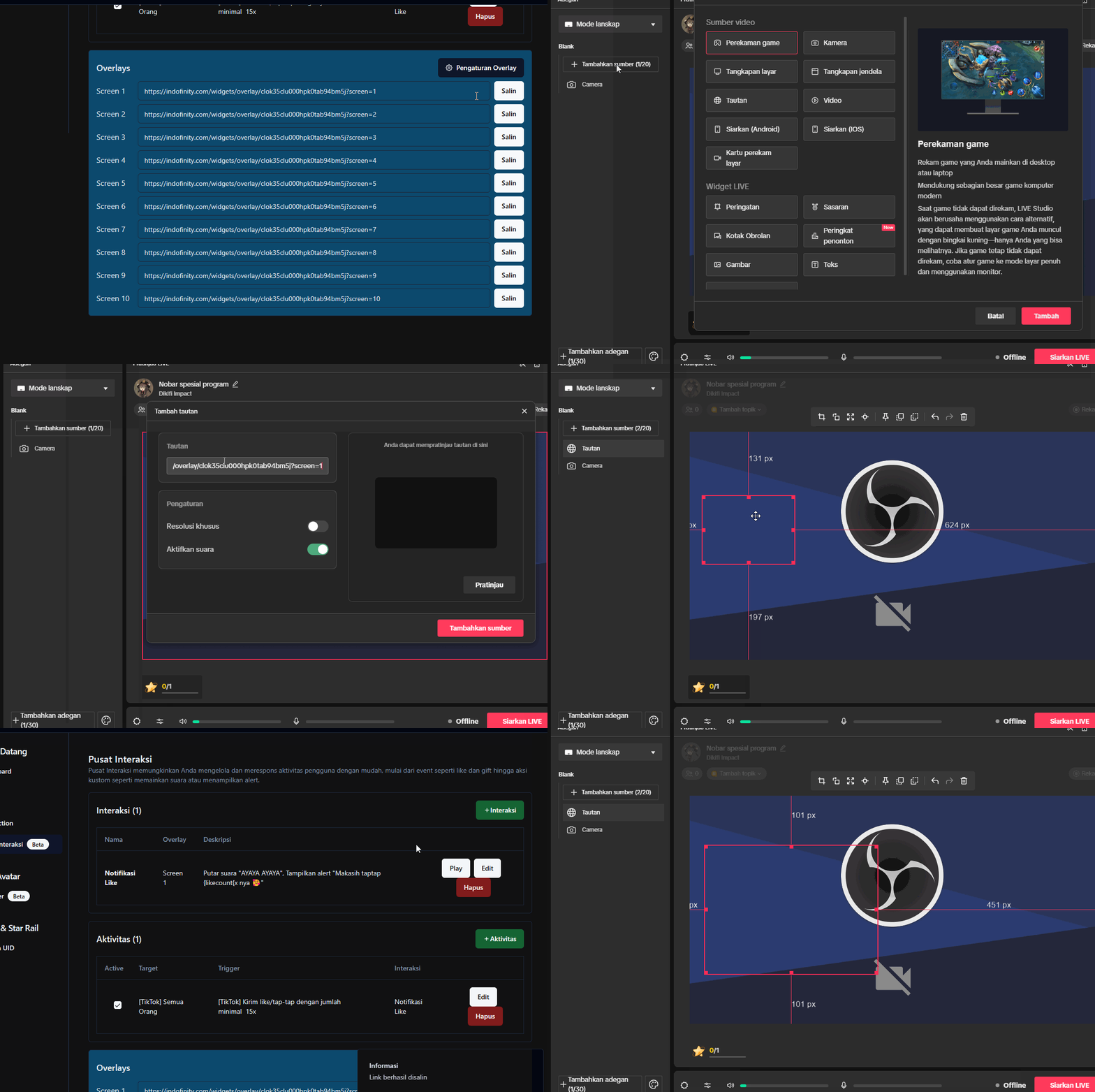
Test it the same way: press Play Interaction in the dashboard.
Important settings
| Setting | What it does | Recommended |
|---|---|---|
| Width × Height | Overlay canvas size | 1920 × 1080 |
| Shutdown source when not visible | Kills the overlay when the source is hidden | Leave unchecked (otherwise the overlay dies and alerts are lost) |
| Refresh browser when scene becomes active | Reloads on every scene change | Fine to tick. Useful if the overlay sometimes freezes |
Never install the same Screen link in two Browser Sources at once, including on two different PCs. IndoFinity detects it as a duplicate and disconnects one of them, so alerts then appear and vanish unpredictably.
Common problems
Symptom: the overlay is black or permanently empty. That's normal. The overlay is transparent and empty until an action runs. Test with Play Interaction. Don't judge it by its idle state.
Symptom: alerts don't appear even though the overlay is installed. The screens probably don't match. The Interaction points to Screen 1 but you installed the Screen 2 link. Open the Interaction, check the screen selector, and match it to the link you installed.
Symptom: alerts appear in the dashboard but not in OBS. Check whether the Browser Source is hidden (the eye icon in the Sources panel), or covered by another source stacked above it.
Symptom: the overlay runs briefly then stops.
The app.indofinity.com tab was probably closed. All processing runs in that tab. If it closes, overlays go silent even while your TikTok live continues.
Symptom: the overlay worked on the old PC but not after switching. The overlay link stays the same, but make sure only one device has it installed. See the duplicate warning above.