Running Minecraft commands from your live
Once your server is connected, the next step is deciding which commands run and when.
Before you start
Your Minecraft server must already be connected, with a successful Test Connection. Not there yet? See Connecting a Minecraft Server.
Setup steps
1. Create an Interaction
-
Open the Interaction Center menu in the dashboard.
-
In the Interactions section, click [+ Interactions].
-
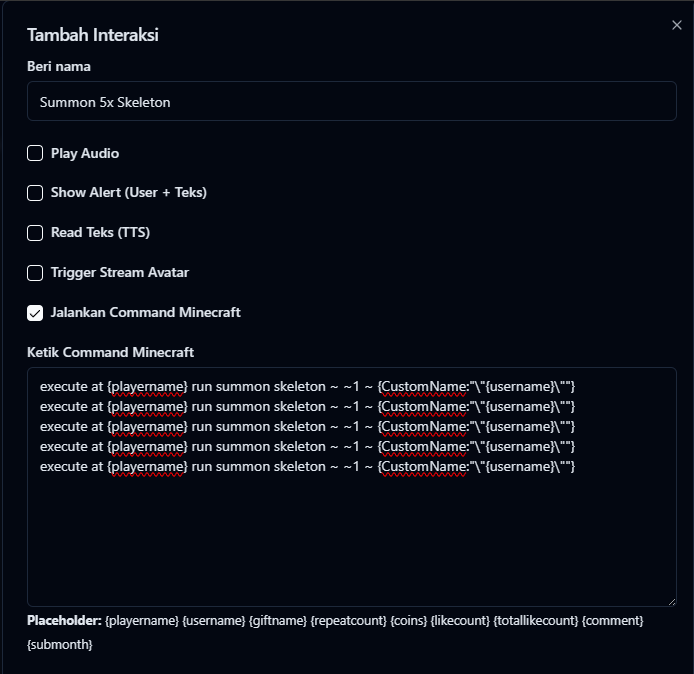
Give it a name, for example
Summon 5x Skeleton. -
Tick Execute Minecraft Command.
-
Enter your Minecraft command.
-
Save.
2. Running several commands at once
One Interaction can run several commands. Just put each command on its own line:
execute at {playername} run summon skeleton ~ ~1 ~ {CustomName:"\"{username}\""}
execute at {playername} run summon skeleton ~ ~1 ~ {CustomName:"\"{username}\""}
execute at {playername} run summon skeleton ~ ~1 ~ {CustomName:"\"{username}\""}
execute at {playername} run summon skeleton ~ ~1 ~ {CustomName:"\"{username}\""}
execute at {playername} run summon skeleton ~ ~1 ~ {CustomName:"\"{username}\""}
The example above runs five commands at once from a single Interaction.
Two placeholders are useful here:
| Placeholder | Replaced with |
|---|---|
{playername} | The player name you entered in the Connection menu. If it's empty, it becomes @a (every player on the server). |
{username} | The TikTok username of the viewer who triggered the action. |
The full list is in Message Variables.
3. Create an Activity
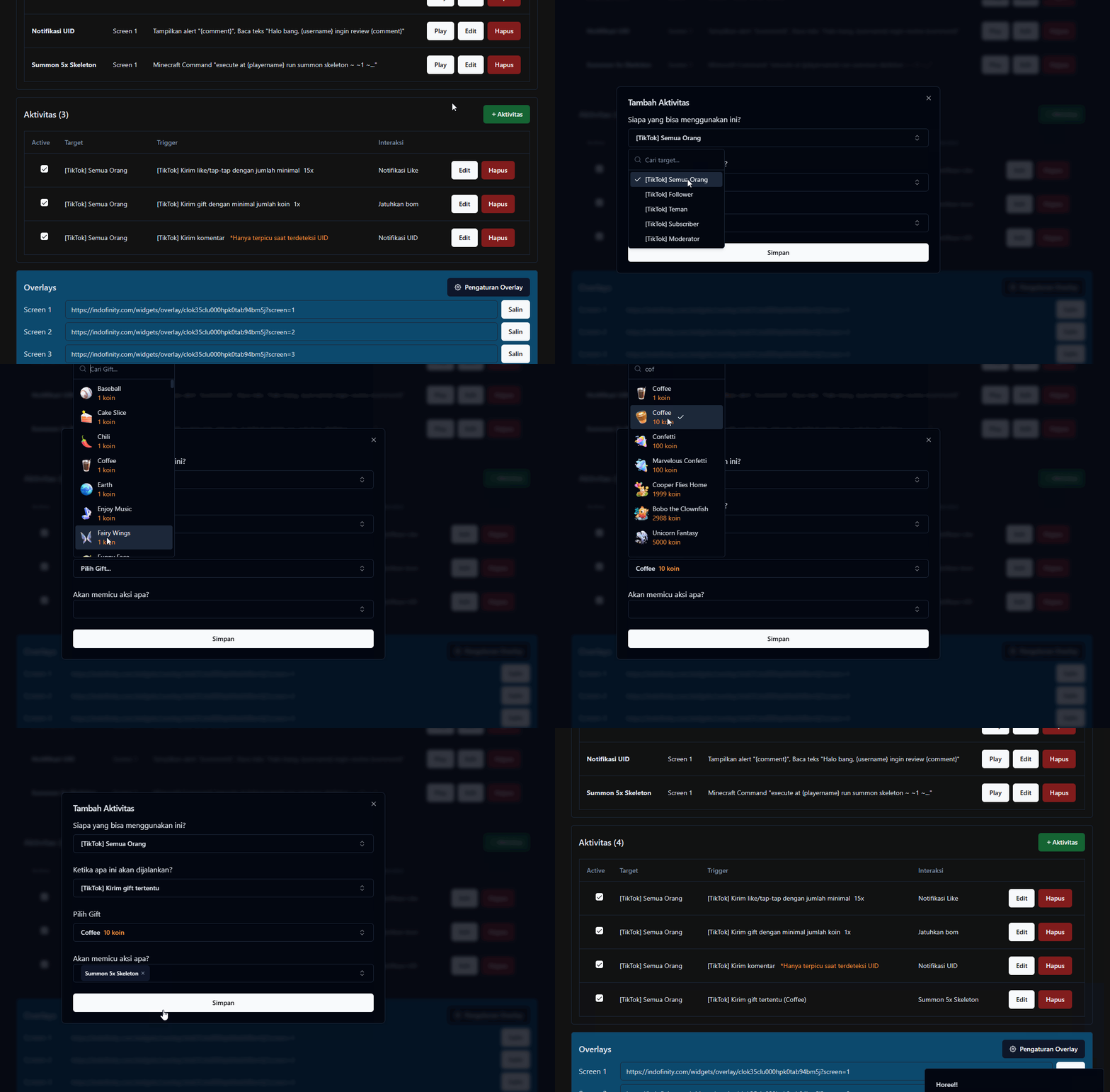
Now decide when the command runs. For example: every time a viewer sends a Coffee gift.
-
Still in the Interaction Center, in the Activities section, click [+ Activities].
-
Fill it in to suit your needs: who can trigger it, what the trigger is, and which Interaction runs.
Common problems
Symptom: the Interaction runs (other alerts appear) but the command never reaches the server. Open the Interaction Center and make sure the Minecraft Command switch is on. That switch can turn off the whole command channel without changing the Interaction itself.
Symptom: the command runs but the mob appears in the wrong place.
{playername} sets the reference point for execute at. If it's empty, its value is @a and the command runs at every player's position at once. Enter your player name in Player name in the Connection menu.