Interactions: The Available Actions
An Interaction answers what happens. A single Interaction can combine several actions, for example showing an alert, playing a sound, and running a Minecraft command from one trigger.
Creating an Interaction
- Open the Interaction Center menu.
- Click the [+ Interaction] button.
- Fill in Enter Name. This is the name you'll pick from an Activity later, so make it clear.
- Tick the actions you want, then fill in their fields.
- Save.
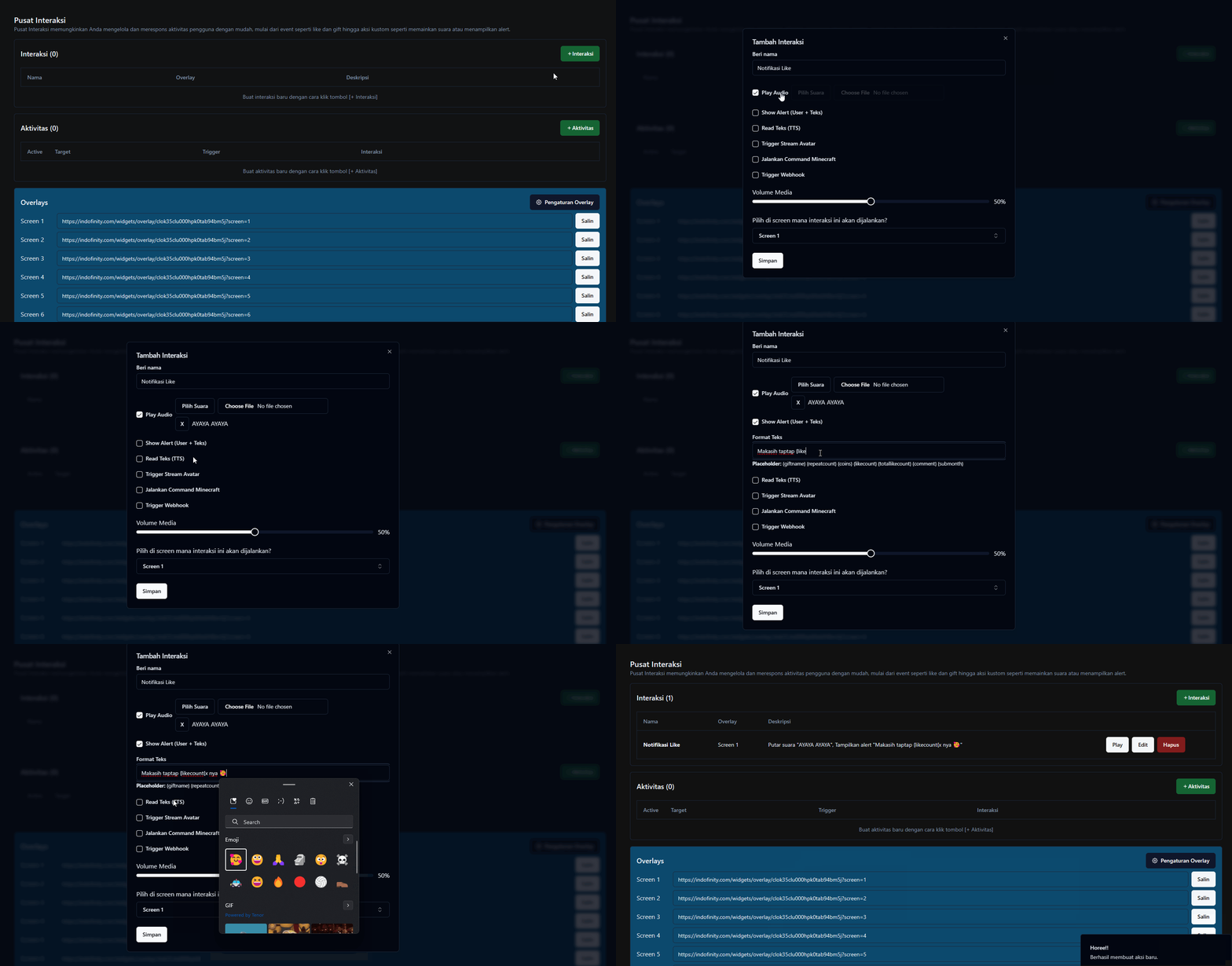
The action list
Displayed on an overlay
These actions need a Screen and only show up if the overlay is installed.
| Action | What it does |
|---|---|
| Show Image | Displays an image you upload |
| Play Video File | Plays a video file |
| Play Audio | Plays a sound (pick one of the available sounds or upload your own) |
| Show Alert (User + Text) | Shows the viewer's profile photo with text. The Text Format field accepts message variables |
| Read Text (TTS) | Reads text aloud in a Google voice. The Voice Format field, for example: Hello {username}! |
Driving other things
| Action | What it does | Note |
|---|---|---|
| Trigger Stream Avatar | Runs an avatar animation on screen | Options: Jump Animation, Run Animation, Drop Bomb, Summon Nuclear |
| Execute Minecraft Command | Sends a command to your Minecraft server | Requires a Minecraft connection |
| Trigger Webhook | Sends data to your own URL | The link must start with http:// or https:// |
| Simulate Keystrokes | Presses keyboard keys into a game or app | Desktop app only |
| Switch OBS Scene | Changes the scene in OBS | Requires an OBS connection |
| Activate OBS Source | Turns on a source in OBS | Turned off again automatically when the Interaction's duration ends |
| Change Win/Lose Points | Adds to or subtracts from the Win/Lose Bar score | Effects: Add WIN, Subtract WIN, Add LOSE, Subtract LOSE, Reset both scores to 0 |
| Spin the Roulette | Spins the Spin Roulette wheel |
IndoFinity's webhook sends data as POST FormData. Older documentation said it used GET, which no longer applies. Make sure your endpoint accepts POST.
A browser can't press keyboard keys outside itself. This action only works through the IndoFinity desktop app. In a browser it is ignored.
Important settings
| Setting | What it does | Note |
|---|---|---|
| Media Volume | Sets the volume | Affects Play Audio and Read Text (TTS) |
| How many seconds will it appear? | How long the action stays on the overlay | Only matters if you don't add Audio or TTS. If you do, the duration follows the length of the sound |
| Select Screen | The Screen this action appears on | Only used by Show Image, Play Audio, Play Video File, Show Alert, and TTS |
| Repeat as many times as the gift combo | The action starts as soon as the combo begins and repeats once for each gift in the combo | If unchecked, the action runs once after the combo ends, so there's a delay while it waits for the combo to finish |
| Cut short if another action is queued | This action shows for only 1 second if another action is waiting in the queue | Useful on busy lives |
| Fade in/out transition | Sounds, images, and videos fade in and out smoothly |
People misunderstand Repeat as many times as the gift combo more than any other setting. If your gift alerts feel "late", it's usually because this box is unchecked. The system waits for the viewer's combo to finish before it runs the action.
Testing an Interaction
The Play Interaction button in the table runs that action right away, with no Activity and no live needed. It's the fastest way to check that your overlay and Screen are set up correctly.
Common problems
Symptom: an Interaction is marked "not active". The message reads: "This interaction is not active. Please renew your premium or delete this interaction." You've gone over the free account limit. See Free Limits and Add-ons.
Symptom: a Screen offline warning appears. That Screen's overlay isn't installed in OBS yet. Copy its link and install it. Installing Overlays shows how.
Symptom: a conflict warning on a "user join" action.
Actions triggered by viewers joining run very often. If such an action shares a Screen with other overlay actions, those can be delayed or dropped. Move the user join action to its own Screen.
See also
- Activities, for deciding when this Interaction runs
- Message Variables
- Screen Overlays