Connecting a Minecraft server
With this connection, viewer gifts and comments can run commands on your Minecraft server, for example spawning mobs, giving items, or changing the weather.
Before you start
Make sure your PC or laptop is powerful enough to run a Minecraft server and a live stream at the same time.
- At least 8 GB of RAM, 16 GB recommended.
- Minecraft Server 1.18.2 or newer.
- Java 17 installed.
Setup steps
1. Install Java 17
-
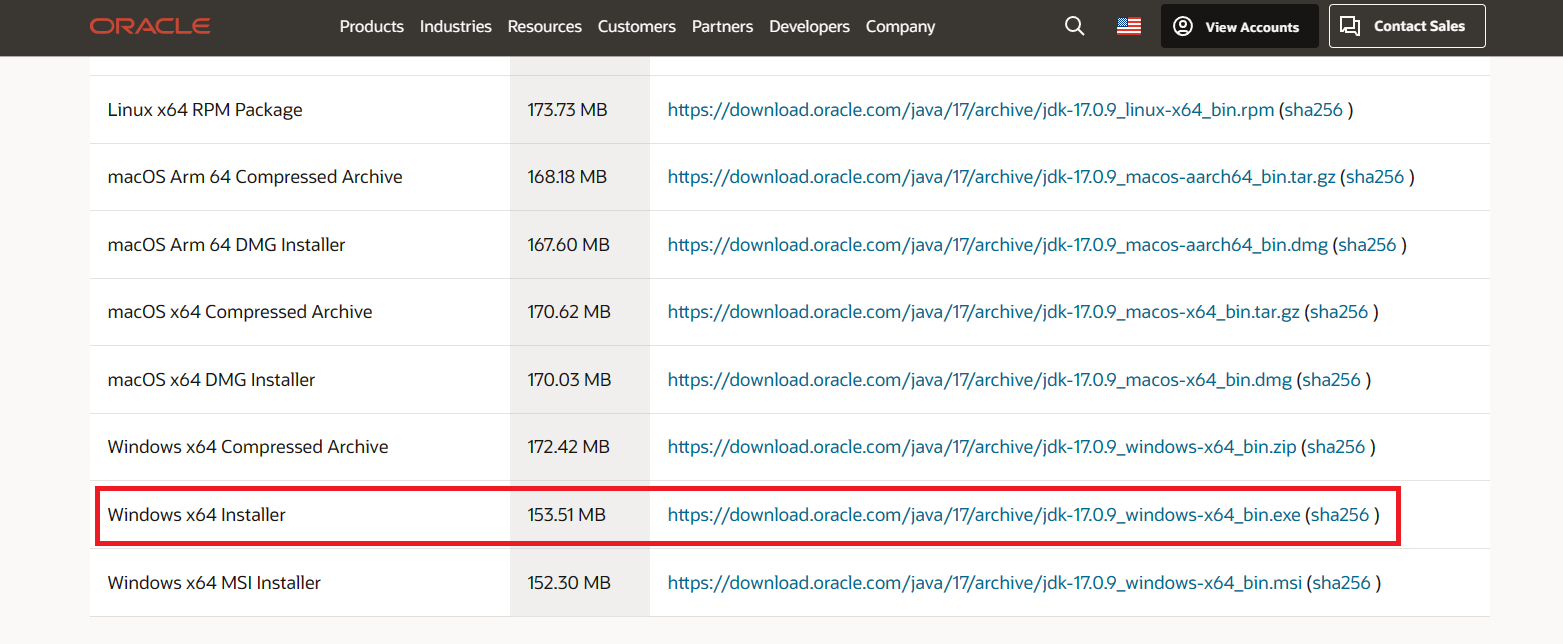
Download Java 17 for your device.
-
Install it like any other application.
-
Open CMD or Terminal and type:
java --version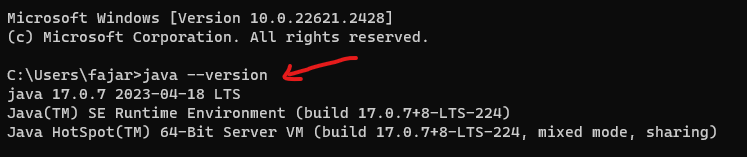
If a version number appears, Java is installed correctly.
2. Set up the PaperMC server
-
Download PaperMC.
-
Create a new folder and move the PaperMC file into it.
-
Rename the file to
server.jar. -
Create a file named
eula.txtcontainingeula=true. -
Click the address bar in File Explorer, type
cmd, and press Enter. -
Run:
java -Xms2G -Xmx2G -jar server.jar --nogui
3. Install the ServerTap plugin
ServerTap is a plugin that opens a channel so IndoFinity can send commands to your server. Without it, the connection will never succeed.
-
Download the ServerTap plugin. Scroll down until you find the
.jarfile.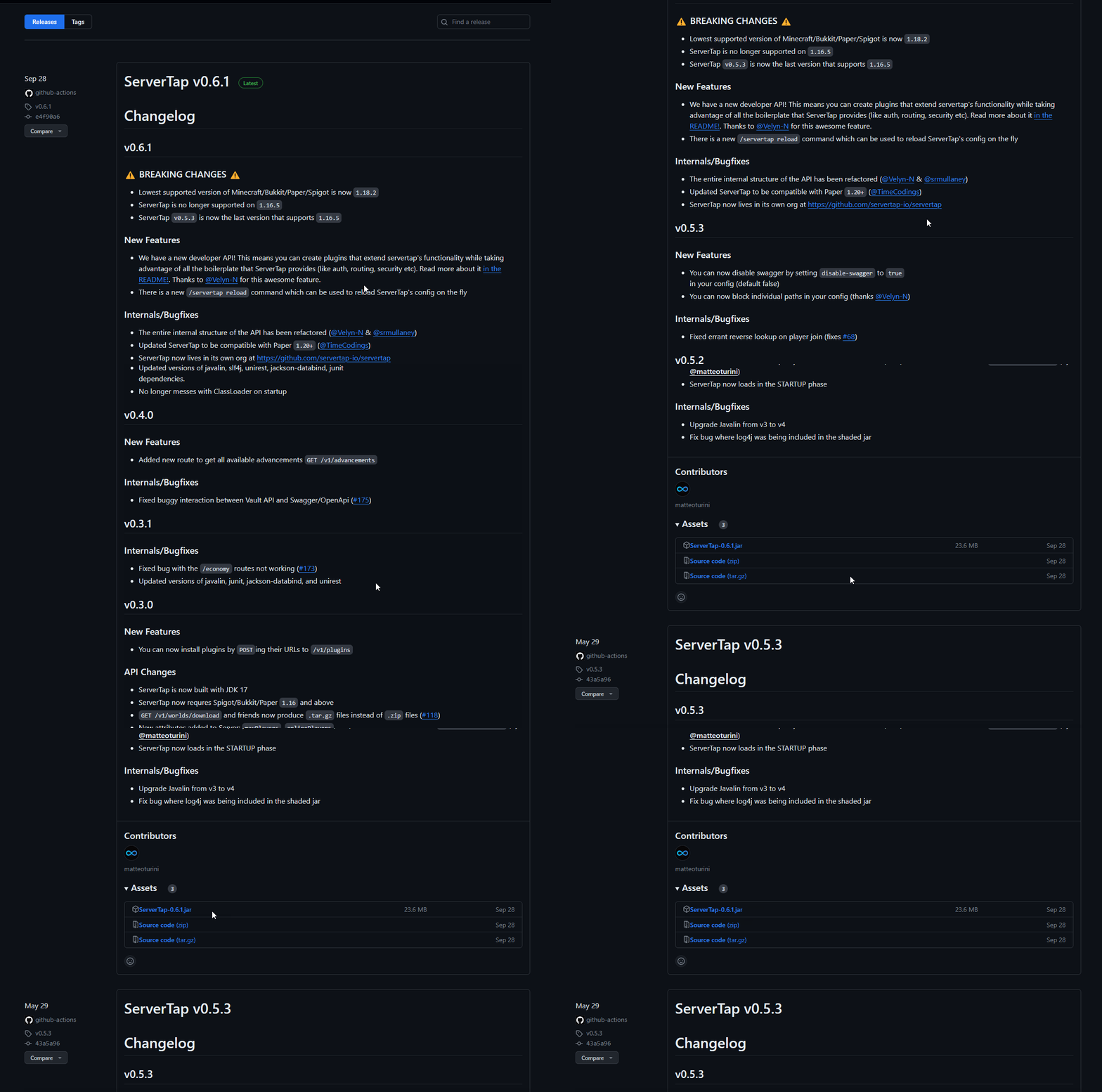
-
Copy that file into the
pluginsfolder inside your server folder. -
Restart the server.
4. Connect to IndoFinity
-
Open the Connection menu in the dashboard.
-
Make sure your Minecraft server is running.
-
If you haven't changed the ServerTap configuration, click Test Connection right away.
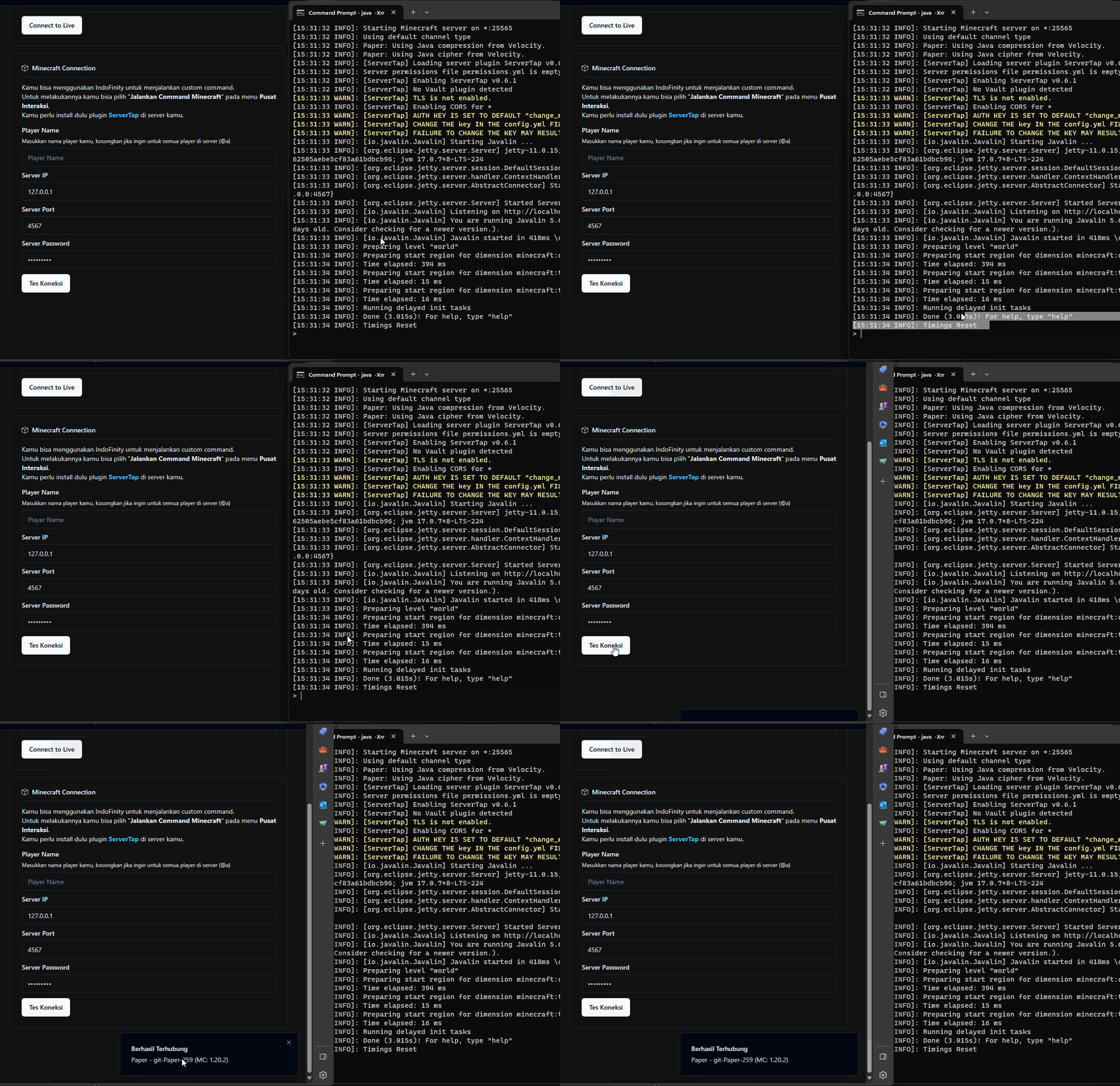
-
A notification appears telling you whether it succeeded or failed.
5. If your server is on hosting or a VPS
This is where people get stuck most often, and the cause is always the same: the port.
A hosting panel gives you one primary port plus a few extra ports:
- The primary port is the Minecraft server's own port, the one players type when they join. Usually
25565. - The extra ports are free ports you can use for anything.
ServerTap needs its own port, separate from the primary port. So the order is:
- Open your hosting panel and find the port list. Note down one of the extra ports.
- Open
plugins/ServerTap/config.ymlon your server. Change theportvalue (default4567) to that extra port. - Restart the server.
- In the IndoFinity dashboard, enter exactly the same port in ServerTap port.
Entering 25565 (or any port players use to join) in the ServerTap port field always fails. What answers on that port is the Minecraft server, not ServerTap.
If your hosting panel gives you no extra ports at all, you can't use ServerTap on that host.
Important settings
| Setting | What it does | Default |
|---|---|---|
| Player name | Which player the commands target | Leave empty for every player on the server (@a) |
| Server IP | The Minecraft server address | Fill in for your server |
| ServerTap port | The port ServerTap opens, not the Minecraft server port | 4567 |
| Server password | The ServerTap password | Matches your ServerTap configuration |
Common problems
Symptom: "Connection Failed: Failed to connect, please check your settings."
The three most common causes, in the order to check them: the Minecraft server isn't running · the ServerTap plugin isn't in the plugins folder, or the server hasn't been restarted since you installed it · the IP, port, or password doesn't match the ServerTap configuration.
Symptom: "Reached the server, but the password was rejected."
The port is right and ServerTap answered, but the key doesn't match. Copy the key value from plugins/ServerTap/config.yml again.
Symptom: "Something answered on this port, but it is not ServerTap." This almost always means you entered the hosting web panel's port or the server's primary port. Go back to step 5 above and use the extra port you set as the ServerTap port.
Symptom: "No answer within 8 seconds." The server is down, the port is wrong, or a firewall is blocking it. If your server is at home and you reach it from outside, the ServerTap port also has to be opened on your router.
Symptom: "Something answered on that port, but there is no /v1/server endpoint."
Your ServerTap version is too old. Download the latest release and replace the .jar file.
Symptom: the server won't start at all.
Check that eula.txt contains eula=true and that the server file is named exactly server.jar.
See also
- Running Minecraft Commands from Your Live, the next step
- Interaction Center