UID Queue configuration
Automatic Setup
The first time you open the GI, HSR, ZZZ UID Queue menu, it asks you to run Automatic Setup before you can use the feature.

You only need to press the button once. After that, the UID Queue menu is ready.
What Automatic Setup does
It adds two entries to the Interaction Center for you, so you don't have to create them by hand. Open the Interaction Center after running it and you'll see the two new entries:
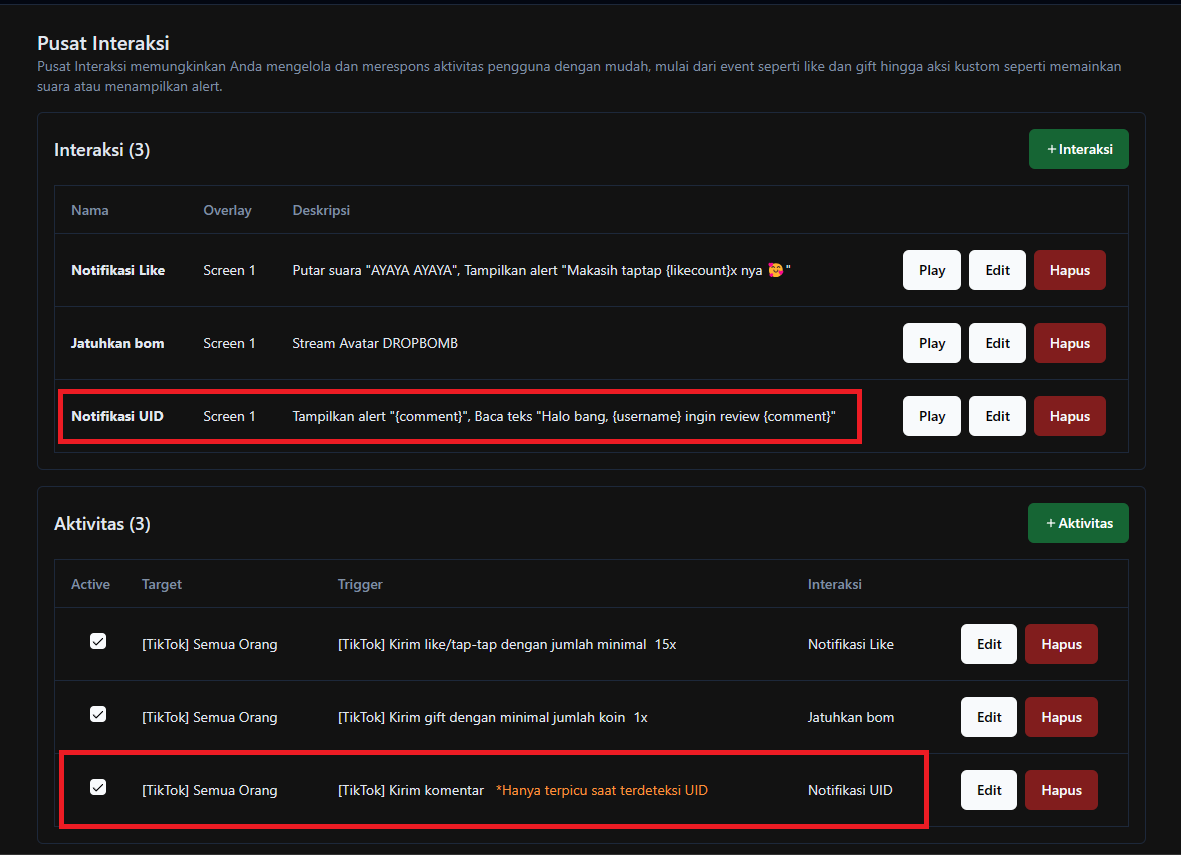
If you delete the entries created by Automatic Setup, the GI, HSR, ZZZ UID Queue menu asks you to run Automatic Setup again. Nothing is permanently broken. Just run it again.
Opening and closing the queue
The GI, HSR, ZZZ UID Queue menu has a switch for opening and closing reviews. Slide it right to open, left to close.
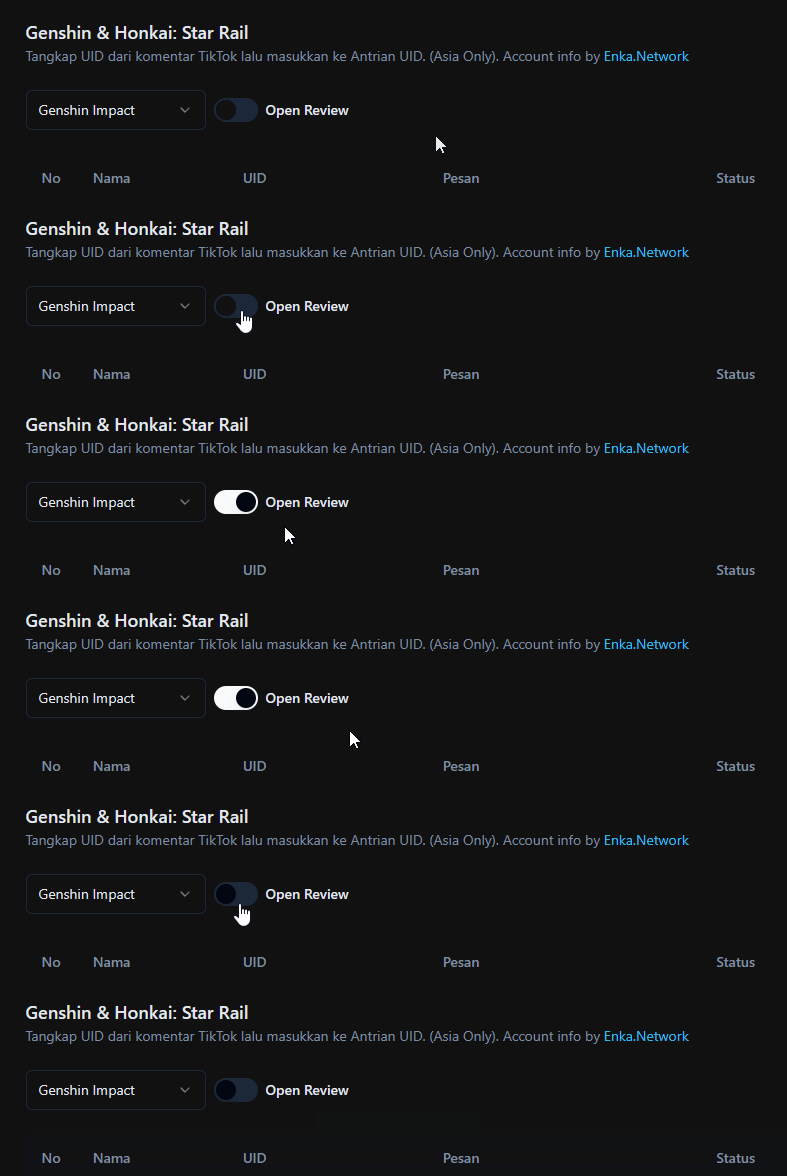
| Position | Behavior |
|---|---|
| On | UIDs sent in the live chat are added to the queue automatically |
| Off | UIDs in the live chat are ignored and the queue stops growing |
Close the queue once the list is long enough, so viewers aren't left waiting for a turn that will never come.
Setting the maximum reviews per person
By default, one viewer can send a UID as many times as they like. On a busy live, that lets one person fill up the queue.
- Open the GI, HSR, ZZZ UID Queue menu.
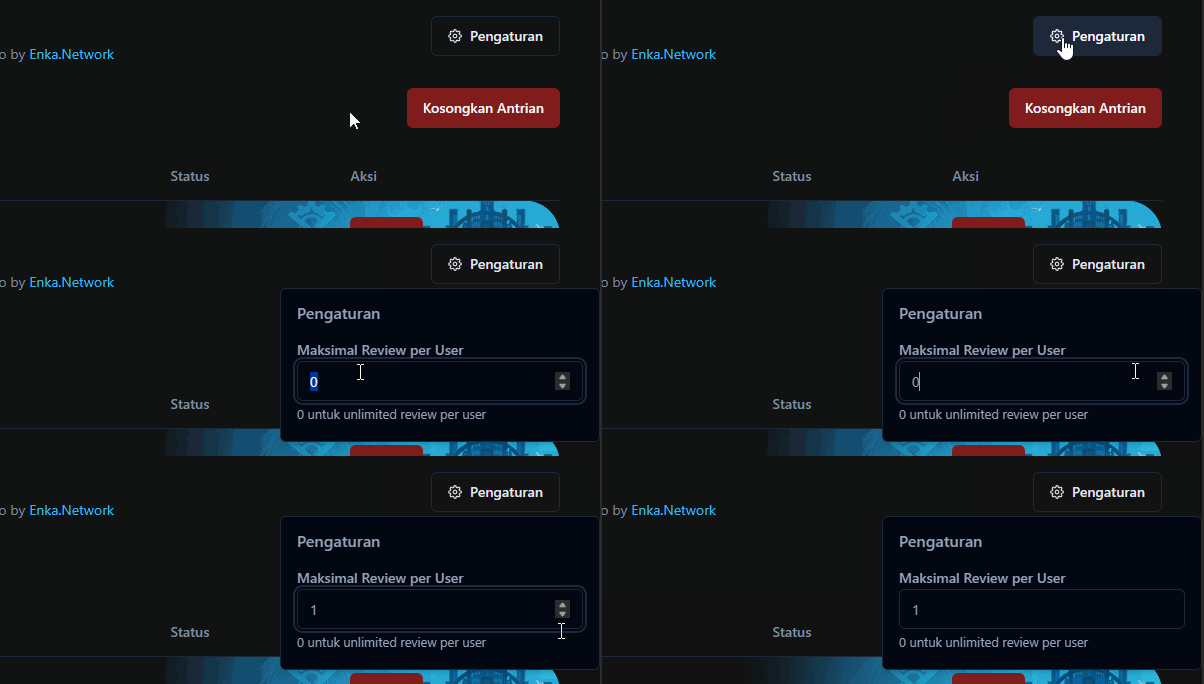
- Press the settings button.
- Enter how many times one viewer can send a UID.
| Value | Meaning |
|---|---|
0 | No limit, viewers can send a UID as many times as they want |
1 | Each viewer gets into the queue once, and later submissions are ignored |
n | At most n times per viewer |
Changes save automatically. There is no save button.
Changing the UID notification
By default, the UID notification shows name + message, and a Google voice reads the message aloud. To change it:
- Open the Interaction Center menu.
- In the Interactions section, find the one named Notifikasi UID. Not there? Run Automatic Setup first.
- Press the Edit button.
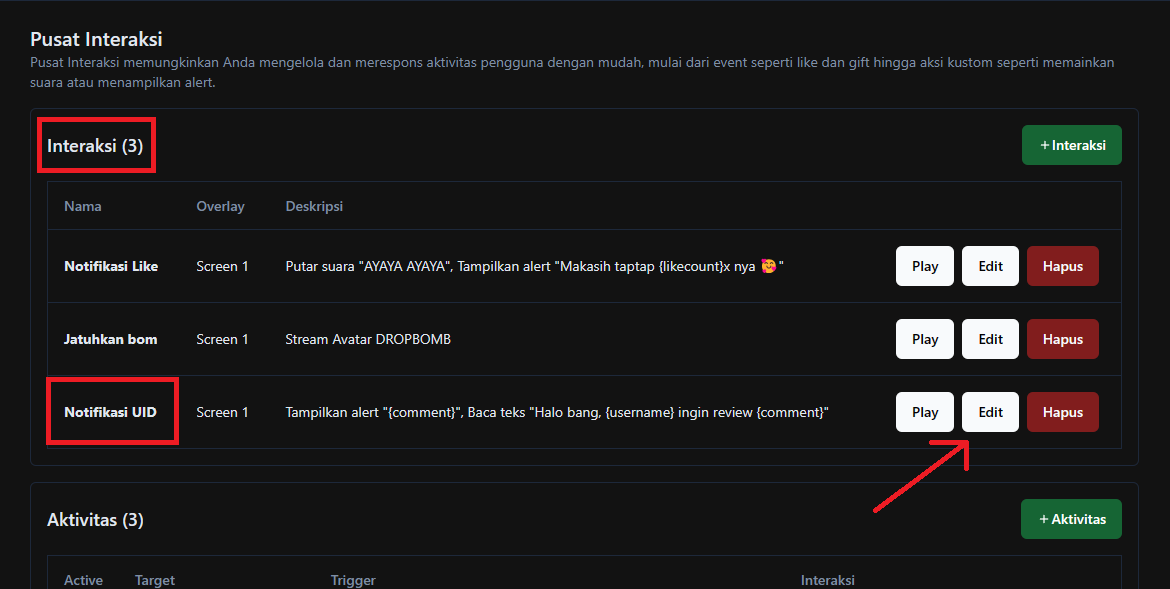
From here you can change the voice, change the text format, turn off TTS, or move it to another Screen, the same as any other Interaction. See Interactions.
Common problems
Symptom: UIDs don't go into the queue even though viewers sent them.
Check the review switch, it's probably off. Also check the per-person limit: if it's set to 1 and that viewer has already sent one, later submissions are ignored.
Symptom: the menu asks for Automatic Setup again even though you already ran it. The entries Automatic Setup created were deleted from the Interaction Center. Run it again.
Symptom: the UID notification doesn't show on screen. The Notifikasi UID Interaction points to a Screen whose overlay isn't installed yet. See Installing Overlays.