Manual and automatic avatar actions
There are two ways to run avatar animations: you press the button yourself, or viewers trigger them with gifts.
Available animations
| Action | Effect |
|---|---|
| Jump Animation | The avatar jumps |
| Run Animation | The avatar runs across the screen |
| Drop Bomb | A bomb drops into the avatar arena |
| Summon Nuclear | A big explosion effect |
Manual Actions
Use these to trigger animations yourself from the dashboard. They're handy for testing after you install the overlay.
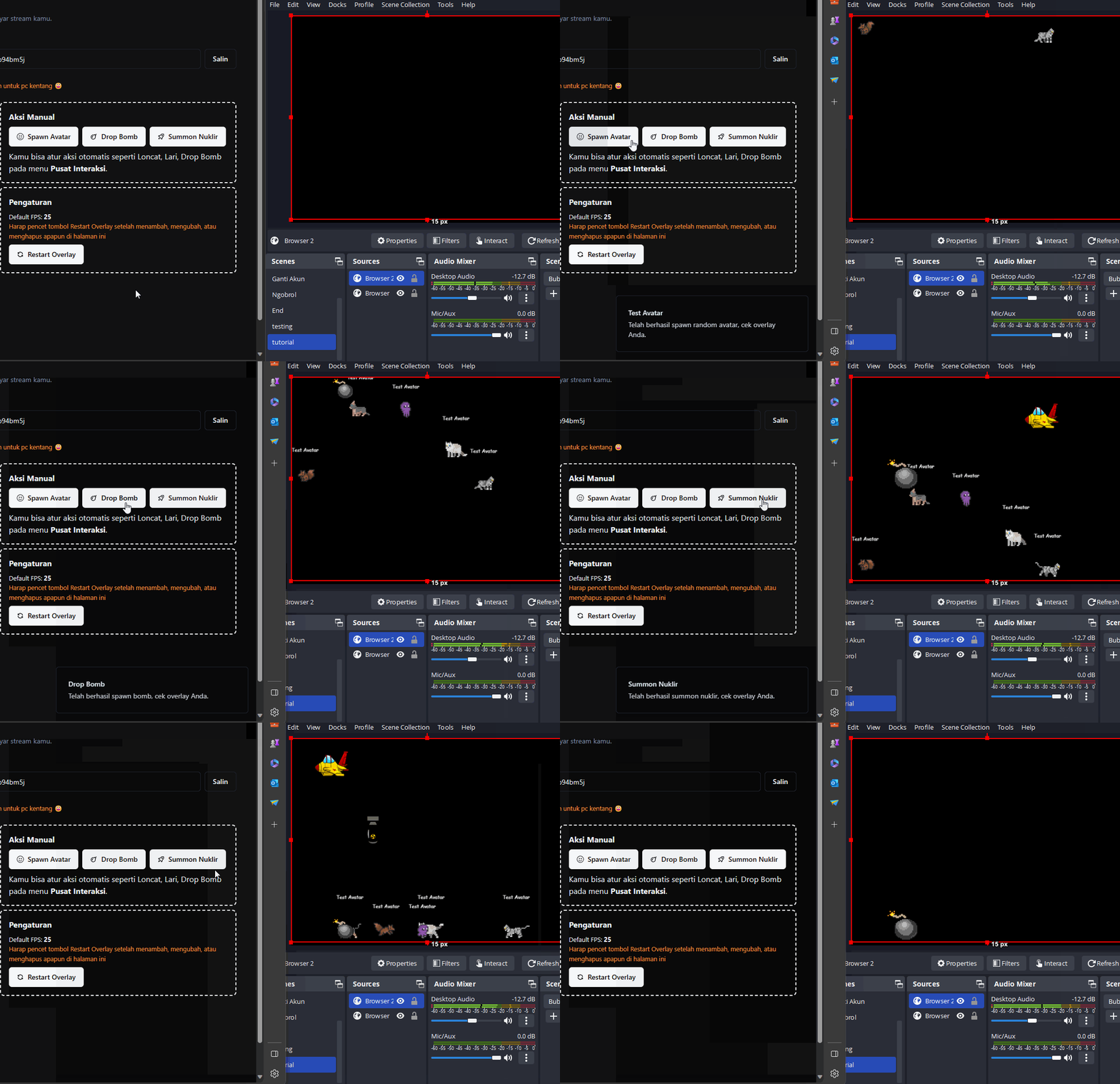
Automatic actions
These let viewers do the triggering. In the example below, a bomb drops every time someone sends a gift worth 1 coin.
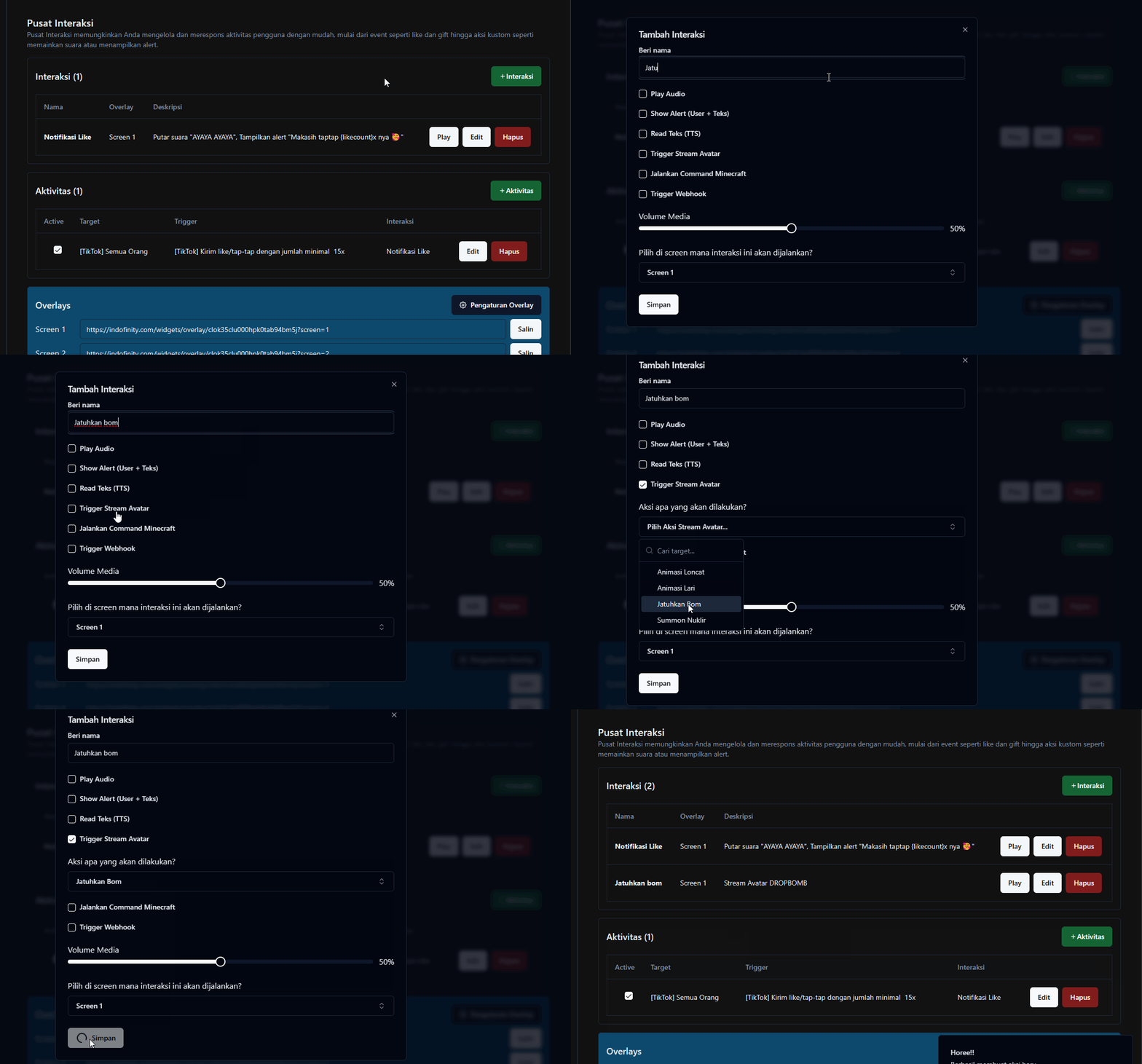
1. Create the Interaction
- Open the Interaction Center menu.
- Press the [+ Interaction] button.
- Give it a name, for example
Drop Bomb. - Tick Trigger Stream Avatar.
- Choose the Drop Bomb animation.
- Save.
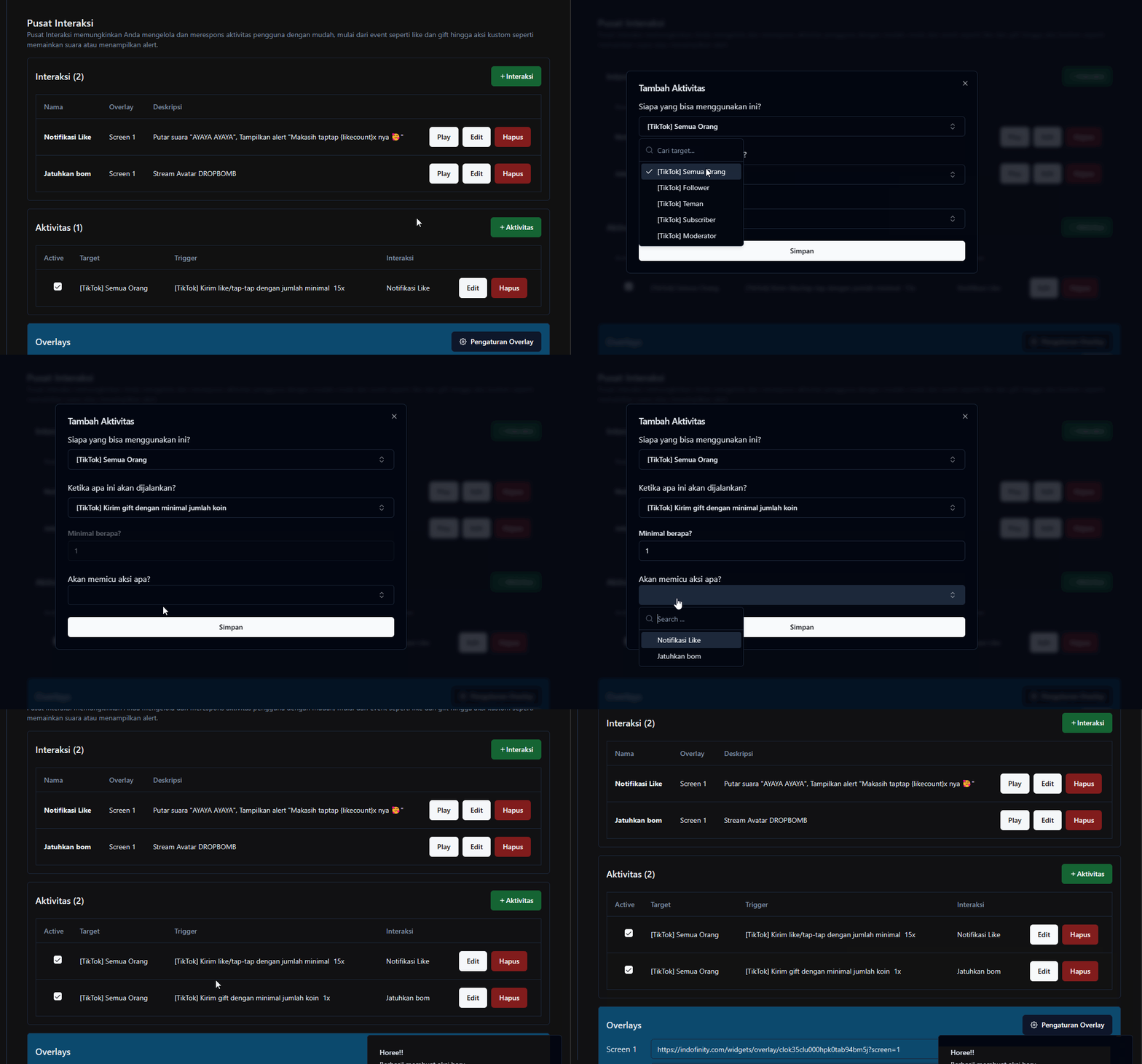
2. Create the Activity
- Press the [+ Activity] button.
- Who can use this: Everyone.
- When will this be executed: [TikTok] Send gift with minimum coin amount.
- Minimum amount:
1. - What action will be triggered: choose
Drop Bomb. - Save.
Trigger Stream Avatar doesn't use a Screen, because it appears on the Stream Avatar overlay and not on an Interaction Center overlay. The Screen choice on this Interaction has no effect unless you combine it with an alert or a sound.
Common problems
Symptom: Manual Actions work, but viewer gifts don't trigger anything. The Activity hasn't been created yet, or Minimum amount? is set higher than the value of the gift sent.
Symptom: nothing happens at all, not even from Manual Actions. The Stream Avatar overlay isn't installed, or it needs a restart. See Installing and restarting the overlay.