Installing and restarting the avatar overlay
Add the overlay
The Stream Avatar overlay link is in the Stream Avatar menu, separate from the Screen links in the Interaction Center.
Open the Stream Avatar menu in the dashboard, find the Install Overlay in OBS / TikTok Live Studio card, and copy the overlay link. Paste it as a Browser Source in OBS, or add it through Add Source → Link in TikTok Live Studio, at 1920 × 1080.
Use the Customize button on the same card to change how this overlay looks.
Never installed an overlay before? Read Installing Overlays in OBS & TikTok Live Studio first. It walks through each step.
Once it's installed, test it with Manual Actions from the dashboard.
In OBS
- Copy the overlay link from the Stream Avatar menu.
- Click the [+] sign on the Sources panel and choose Browser.
- Paste the link.
- Click OK to save.
- Use Manual Actions to test it.
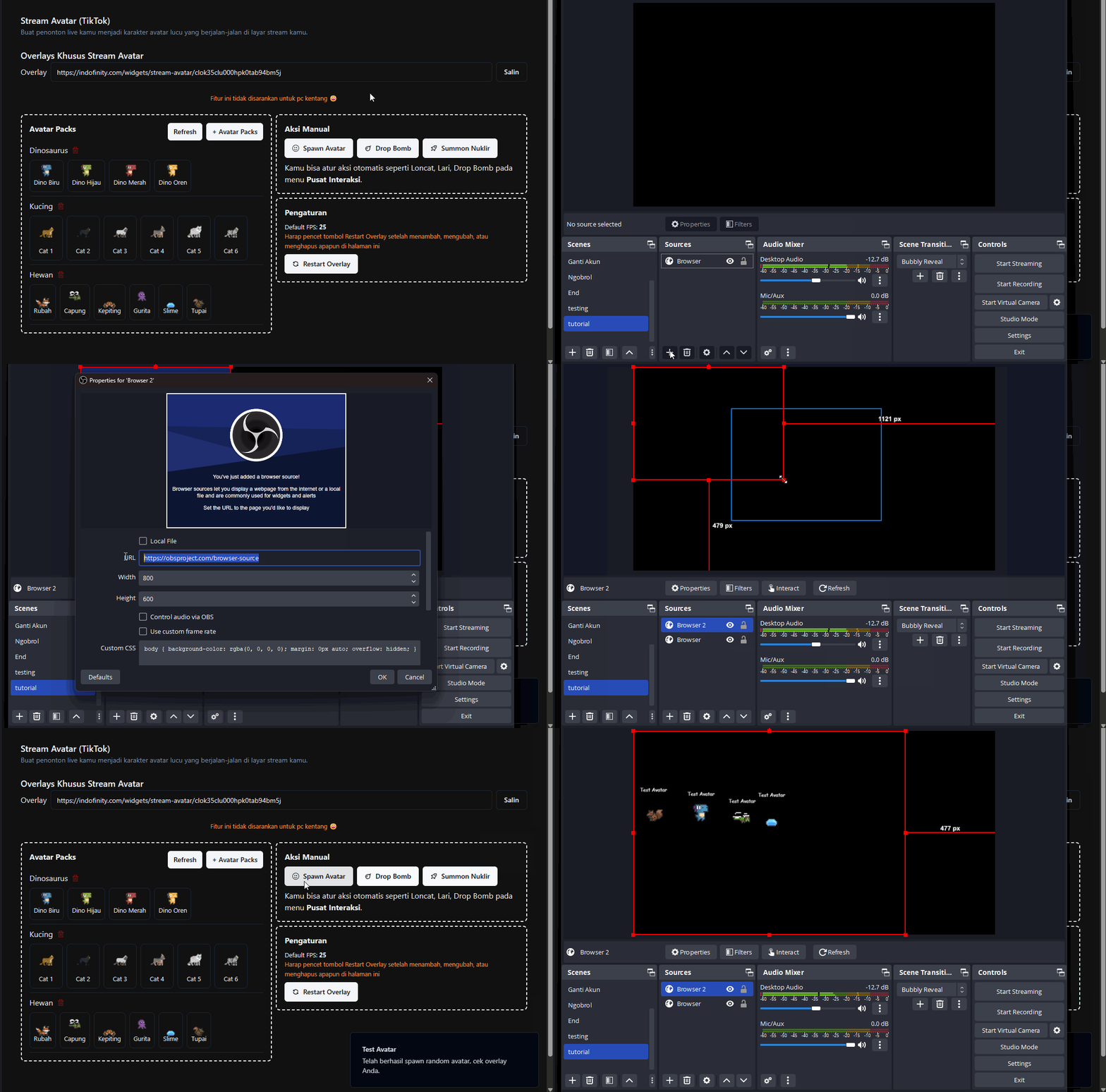
In TikTok Live Studio
- Copy the overlay link from the Stream Avatar menu.
- Press the Add Source button and choose Link.
- Paste the link.
- Click OK to save.
- Use Manual Actions to test it.
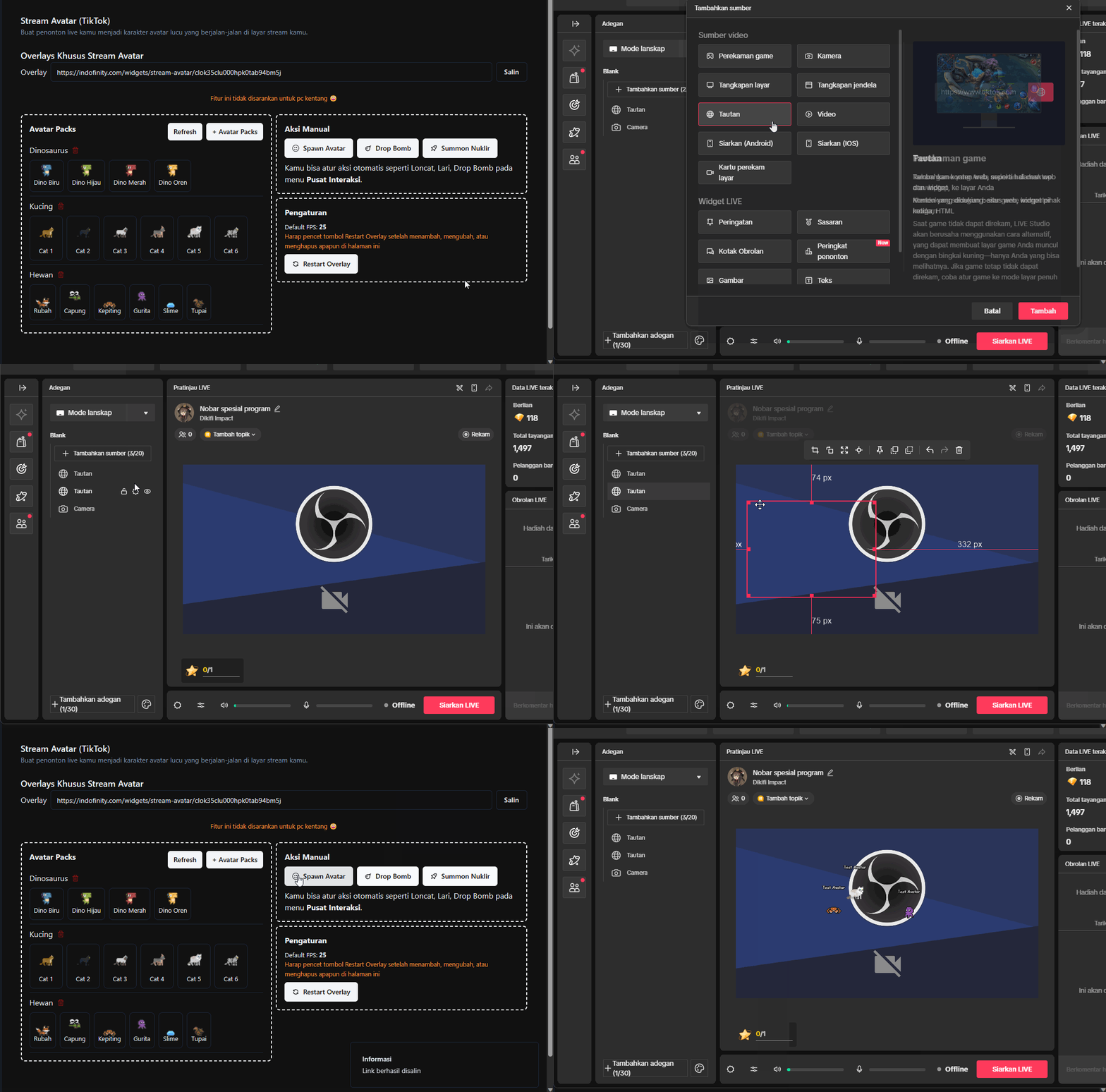
Restart overlay
The avatar overlay loads its avatar data once, when it opens. If you change something after that, the change doesn't show until you restart the overlay.
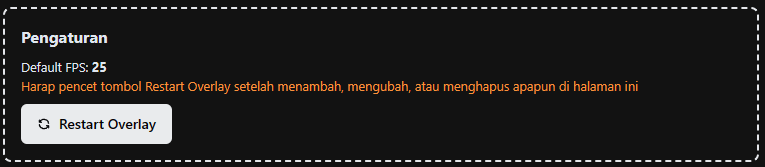
Restart it every time you:
- Add a new Avatar Pack
- Remove an Avatar Pack
- Change the avatar settings
- Change the overlay resolution
If a new avatar doesn't show up after you add it, the overlay almost certainly hasn't been restarted. Check this before looking for other causes.